 Easy AI News
 Produced by an automated AI writing routine. About
Why Does AI Keep Forgetting What You Told It? The Real Reason, and What Actually Helps
A plain explanation of why AI doesn't really have memory by default, what ChatGPT, Gemini, and Claude have each built to work around it, and the one habit that beats waiting for it to remember.
In this article
Ever had this happen: you spend a few minutes explaining a project to an AI, come back the next day to ask a follow up question, and it acts like that whole conversation never took place. You end up retyping the company name, the project details, even where you left off. A little annoying, and you've probably wondered if you missed a setting somewhere.
You didn't miss anything. AI is built to start from zero every single conversation. It doesn't automatically hold on to what you said last time. This piece explains how that actually works under the hood, what , Gemini, and Claude have each added to patch around it, and one thing you can do yourself that beats hoping it remembers.
Is It Really Forgetting, or Did I Miss a Setting?
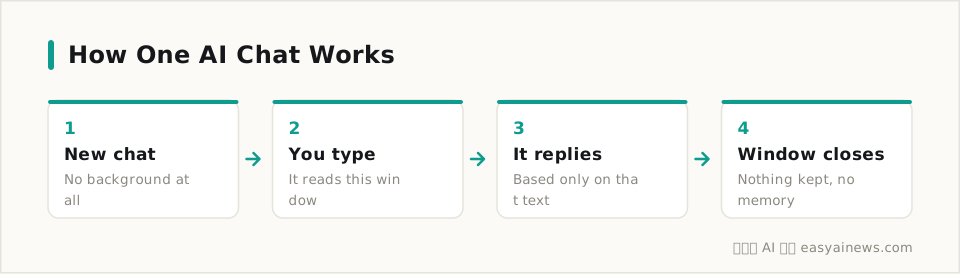
The way a works is simple once you strip away the jargon: you type something, it reads the text sitting in that conversation window, and it generates a reply. That's it. There's no separate file somewhere quietly saving "who you are" or "what you asked last time," unless the product built that on top.
Picture it a different way. It's like a genuinely brilliant consultant who doesn't have an assistant keeping his files. Every time you walk into his office, he recognizes you as someone who's come to see him, but he has no idea what you talked about last visit. You have to spread your papers out on his desk again before he can see any of it.
There's a real term for this: engineers call it the " window." The model can only see the text you've pasted into this particular conversation, plus everything said earlier in that same thread. Close the window, and none of that text is in front of it anymore. It isn't choosing to forget you. It was simply never built to hold on to anything past that.
So why does it sometimes feel like it really does remember what you said last time? That's usually because the platform bolted a memory feature on separately. The three big players each did it differently.
What ChatGPT, Gemini, and Claude Actually Mean by "Memory"
All three major AI platforms have added some version of memory over the past year or so, and none of them work quite the same way.
OpenAI describes ChatGPT's memory as two layers. One is "saved memories," a list you can view, edit, or delete yourself, made up of preferences or details it noted, like the tone you like or topics you ask about often. The other is "reference chat history," where it looks back across your past conversations to pull in relevant context without you asking. Both can be switched off separately in settings.
Google's Gemini has been rolling out something similar this year. A "Personal Intelligence" feature launched in January connects to your other Google apps so it can pick up context about you. Starting in April, a "Memories" setting began appearing in some regions, on by default, remembering key details and preferences you've mentioned, though you can turn it off any time. If you're in Taiwan and haven't seen this option yet, that's normal. Rollouts go region by region.
Claude's team updated its memory in July so it now stores individual entries you can edit one at a time, replacing the older approach of writing one daily summary. That means you can open settings, read through what it's kept, and fix or delete a single entry without wiping everything at once. Separately, Claude also has "Projects," where you can drop reference material and instructions into a workspace, and every conversation started inside that project automatically has access to it.
All of this sounds convenient, but the mechanics differ. Some of it gets remembered for you automatically. Some of it you have to organize and hand over yourself. Spending two minutes figuring out which kind your platform uses saves you a fair amount of guessing later.
Convenience like this usually comes with a catch worth knowing about.
Once Memory Is On, Are You Done Thinking About It?
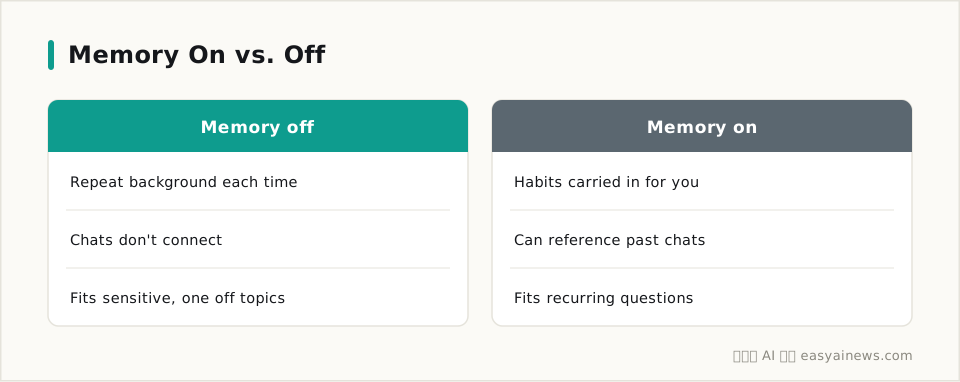
Not quite. Even with memory turned on, there are a few things worth keeping an eye on.
Free tiers often don't include this feature at all, or offer a stripped down version, so if you're hoping it'll save you effort, check whether your plan actually has it. What gets remembered doesn't always sync across devices or accounts either. Log in on a different computer and things it seemed to "know" might need retyping.
What you're actually storing is worth a second thought too. Since it's saving things you've said, health details, financial specifics, unreleased work plans, anyone else's private information, pause before typing those in. You can open settings, see exactly what it currently has saved, and delete anything you'd rather it not keep, or turn the whole feature off and paste your own background each time instead. Checking what any service that "remembers" you is actually holding onto is just a good habit to build.
Here's the more basic issue underneath all this: even with memory switched on, free tier limits and cross device gaps mean it still often just doesn't remember. If you actually want to save effort, there's one more thing you can do yourself.
Your Own "Context Packet" Beats Waiting for It to Remember
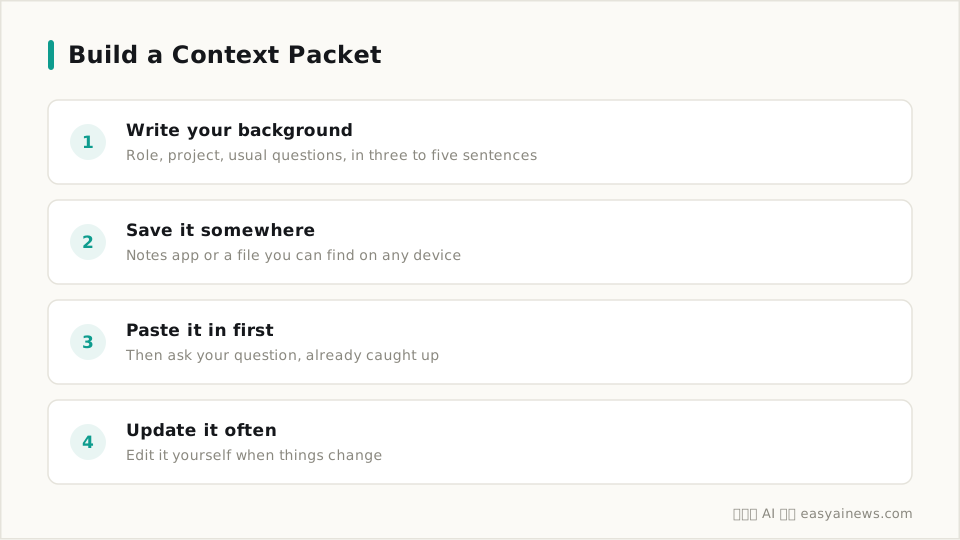
Instead of gambling on whether it'll remember, write your usual background into a fixed block of text, save it in your notes app or a file, and paste it in fresh whenever you start a new conversation.
Keep it simple. Your role or line of work, the project you're on, the kinds of questions you usually ask, the tone you want back. Three to five sentences covers it. Paste that in first, then ask your question, and it's caught up before you even finish typing.
If you're using Claude's Projects, you can drop this background straight into the project's knowledge base or instructions, set it once, and every conversation inside that project picks it up automatically. ChatGPT lets you save it into "saved memories" the same way, so you're not pasting it by hand each time either. It's the same idea covered in an earlier piece here on getting more out of ChatGPT: giving it more background up front gets you noticeably more useful answers (see a plain language guide for absolute beginners). The only real difference is whether you write that background once, or retype it every time.
Don't let that text sit untouched once it's written either. When the project wraps up, when you switch jobs, when the questions you're asking change, go back and update it. Otherwise the AI keeps guessing based on background that's already out of date.
Three Things Worth Remembering
- AI has no built in memory of its own. Every answer is based only on what's visible in that conversation window, and once the window closes, that content is gone from view.
- ChatGPT, Gemini, and Claude have all added their own memory features, but they work differently. It's worth checking settings to see what's being kept automatically, and deciding for yourself what stays and what gets deleted.
- Rather than betting on whether it remembers, writing a fixed block of background and pasting it in at the start of every conversation is the most reliable shortcut there is.
Next time it asks you for some background, you'll already have it ready to paste.